React Native Navigation 101
This is a quick guide to various navigation patterns in react native.
Set up
Let’s create a new project:
npx create-expo-app@latest --template blank-typescript
And update tsconfig.json to be able to handle absolute paths
{
  "extends": "expo/tsconfig.base",
  "compilerOptions": {
    "strict": true,
    "paths": {"@/*": ["./*"]}
  }
}
The very first step is to install react navigation package
npm install @react-navigation/native
npx expo install react-native-screens
Stack
Stack is a navigation pattern where screens are pushed on top of each other and poped back with a back button.
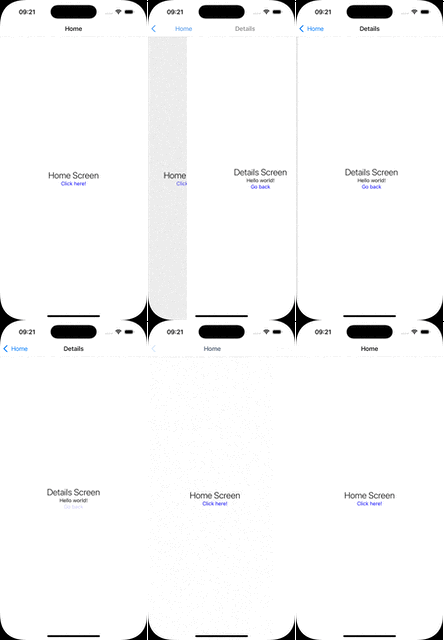
To implement this pattern we need to install the native-stack package.
npm install @react-navigation/native-stack
The have Map between screen name and their parameters. For screen that take no parameters the value is set to undefined.
For example, if we wish to have 2 screens where a Home that takes no params and a Details that takes a string as param, we can create our StackParams as:
export type StackParams = {
  Home: undefined;
  Details: { text: string };
};
Then we need to create the Navigator using StackParams. And register our screen components with the StackParams.Key
const Stack = createNativeStackNavigator<StackParams>();

function RootStack() {
  return (
    <Stack.Navigator>
      <Stack.Screen name="Home" component={HomeScreen} />
      <Stack.Screen name="Details" component={DetailsScreen} />
    </Stack.Navigator>
  );
}
And finally at the root we need to provide a NavigationContainer and provide the RootStack as the only child.
export default function App() {
  return (
    <NavigationContainer>
      <RootStack />
    </NavigationContainer>
  );
}
Within HomeScreen we can use the useNavigation() hook to navigate to the DetailsScreen.
export default function HomeScreen() {
  const navigation = useNavigation<NativeStackNavigationProp<StackParams>>();

  return (
    <View style={Styles.screen}>
      <Text style={Styles.h2}>Home Screen</Text>
      <TouchableOpacity
        onPress={() => navigation.navigate("Details", { text: "Hello world!" })}
      >
        <Text style={Styles.button}>Click here!</Text>
      </TouchableOpacity>
      <StatusBar style="auto" />
    </View>
  );
}
The navigation and route are also injected as params to the Screen. So for example in the DetailsScreen we can use the route to read the provided params and then make use of navigation to pop back the stack:
type Props = NativeStackScreenProps<StackParams, "Details">;

export default function DetailsScreen({ navigation, route }: Props) {
  const { text } = route.params;
  return (
    <View style={Styles.screen}>
      <Text style={Styles.h2}>Details Screen</Text>
      <Text style={Styles.text}>{text}</Text>
      <TouchableOpacity onPress={() => navigation.goBack()}>
        <Text style={Styles.button}>Go back</Text>
      </TouchableOpacity>
      <StatusBar style="auto" />
    </View>
  );
}
Modal
Modal is a navigation pattern where a screen is shown on top of existing screen.
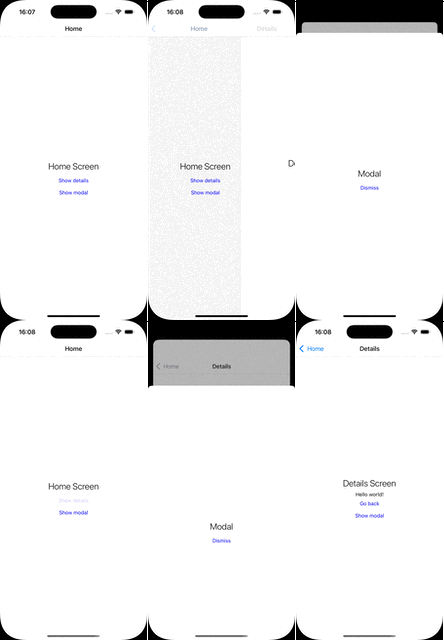
For simple cases we use the Stack pattern and set the presentation mode to modal and call it a day.
function RootStack() {
  return (
    <Stack.Navigator screenOptions={ { presentation: "modal" } }>
      <Stack.Screen name="Home" component={HomeScreen} />
      <Stack.Screen name="Details" component={DetailsScreen} />
    </Stack.Navigator>
  );
}
But for a more realistic scenario where we have both an existing layout like a Stack navigation and a Modal navigation that can be triggered from both the Home and the Details screen we have to break the view hierarchy in to multiple Navigators.
It is easier to think in terms of file system made up of files and directories. The files are equivalent to the screen contents and the directories are the navigators that do not have much of a content but provide a container for a set of screens that can then transition to each other.
App
├── RootLayout
│   ├── MainLayout
│   │   ├── HomeScreen
│   │   └── DetailsScreen
│   └── ModalScreen
We need to update our RootLayout to have a Main and Modal. The Main can then delegate to the existing Stack navigator.
export type RootParams = {
  Main: undefined;
  Modal: undefined;
};

const RootNavigator = createNativeStackNavigator<RootParams>();

export function RootLayout() {
  return (
    <RootNavigator.Navigator
      screenOptions={ { presentation: "modal", headerShown: false } }
    >
      <RootNavigator.Screen name="Main" component={MainLayout} />
      <RootNavigator.Screen name="Modal" component={ModalScreen} />
    </RootNavigator.Navigator>
  );
}
export type MainParams = {
  Home: undefined;
  Details: { text: string };
};

const MainNavigator = createNativeStackNavigator<MainParams>();

export function MainLayout() {
  return (
    <MainNavigator.Navigator>
      <MainNavigator.Screen name="Home" component={HomeScreen} />
      <MainNavigator.Screen name="Details" component={DetailsScreen} />
    </MainNavigator.Navigator>
  );
}
Within a screen we can use the rootNavigation to show the Modal screen.
export default function HomeScreen() {
  const mainNavigation = useNavigation<NativeStackNavigationProp<MainParams>>();
  const rootNavigation = useNavigation<NativeStackNavigationProp<RootParams>>();

  return (
    <View style={Styles.screen}>
      <Text style={Styles.h2}>Home Screen</Text>
      <TouchableOpacity
        onPress={() =>
          mainNavigation.navigate("Details", { text: "Hello world!" })
        }
      >
        <Text style={Styles.button}>Show details</Text>
      </TouchableOpacity>
      <TouchableOpacity onPress={() => rootNavigation.navigate("Modal")}>
        <Text style={Styles.button}>Show modal</Text>
      </TouchableOpacity>
      <StatusBar style="auto" />
    </View>
  );
}
Bottom Tabs
Bottom Tabs is a navigation pattern where there are tab icons at the bottom of the screen with every icon switching to a different flow.
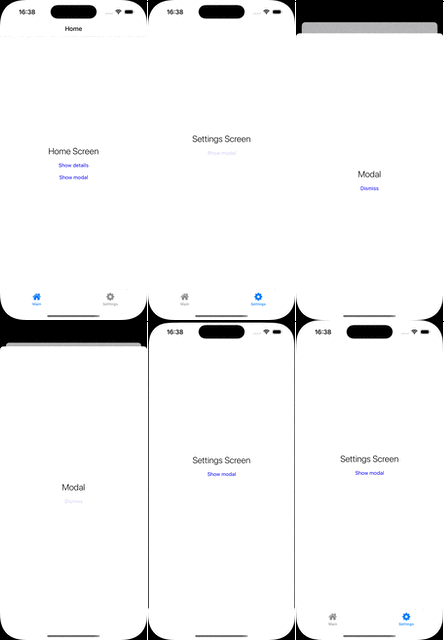
npm install @react-navigation/bottom-tabs
Extending our example from above if we wish to have bottom tab bar we are looking for this structure:
App
├── RootLayout
│   ├── TabLayout
│   │     ├── MainLayout
│   │     │   ├── HomeScreen
│   │     │   └── DetailsScreen
│   │     └── SettingsScreen
│   └── ModalScreen
The plan is to have two tabs. First one for the Stack containing both Home and Details screens. And the second one containing just a single Settings screen. And then at the root level we still have the Modal navigation.
export function RootLayout() {
  return (
    <RootNavigator.Navigator
      screenOptions={ { presentation: "modal", headerShown: false } }
    >
      <RootNavigator.Screen name="Tab" component={TabLayout} />
      <RootNavigator.Screen name="Modal" component={ModalScreen} />
    </RootNavigator.Navigator>
  );
}
export type TabParams = {
  Main: undefined;
  Settings: undefined;
};

const TabNavigator = createBottomTabNavigator<TabParams>();

export default function TabLayout() {
  return (
    <TabNavigator.Navigator screenOptions={ { headerShown: false } }>
      <TabNavigator.Screen
        name="Main"
        component={MainLayout}
        options={ {
          tabBarIcon: ({ color, size }) => (
            <FontAwesome name="home" size={size} color={color} />
          ),
        } }
      />
      <TabNavigator.Screen
        name="Settings"
        component={SettingsScreen}
        options={ {
          tabBarIcon: ({ color, size }) => (
            <FontAwesome name="gear" size={size} color={color} />
          ),
        } }
      />
    </TabNavigator.Navigator>
  );
}